3 Update IGOOR
The IGOOR version is displayed when you launch the software:
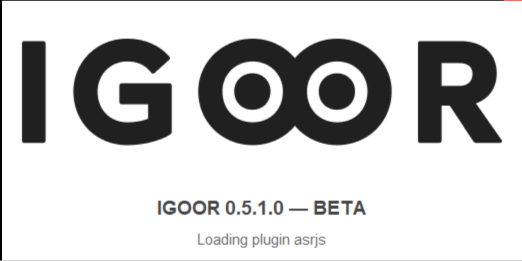 (in this case, it is 0.5.1.0)
1) Back up your data
First, close the IGOOR software (if you are currently using it). Then locate the folder that contains all your IGOOR data. It is located inside the folder:
C:\Users\your-windows-username\AppData\Roaming
For example, if your Windows username is "jean", the folder will be in:
C:\Users\jean\AppData\Roaming
You will see a folder named "igoor". Copy or rename it.
Then launch IGOOR. If you use speech recognition via VOSK, go to:
Settings > Extension > ASR
And disable the Vosk extension. Vosk has been replaced by another model that you can enable afterwards via 3 - Local voice recognition.
Then go to:
Settings > Home
And click the Export data button. The data is exported as a .zip file into your Downloads folder.
2) Uninstall the current version
Close IGOOR and uninstall it like any other Windows application.
3) Install the new version of IGOOR
Download the latest version of IGOOR
Run the installation as you did before (see 4 - Install IGOOR). You can install IGOOR in the same folder (it is fine if you receive a warning that the folder is not empty).
4) Import the data
Go to:
Settings > Import data
And select the zip file in your Downloads folder. This will import your bio, your extensions, preferences, etc.
If you run into any problems during your update, please contact support@igoor.org and we will get back to you as soon as possible.