4 Install IGOOR
Click the installer and allow the installation from an unknown source.
Third-party components installation
IGOOR relies on FFmpeg and on a Microsoft component called Edge WebView2 Runtime. If they are already installed on your computer, you will see this box:
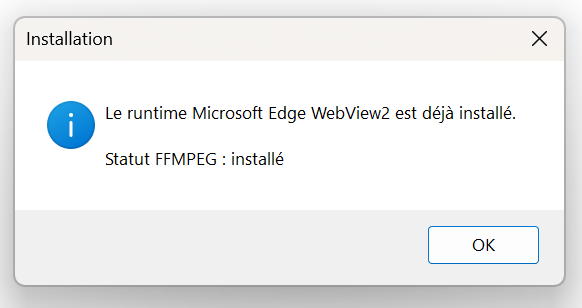
Otherwise, the installer will continue installing them on your machine. Follow the instructions to install them.
License
You then need to accept the IGOOR license:
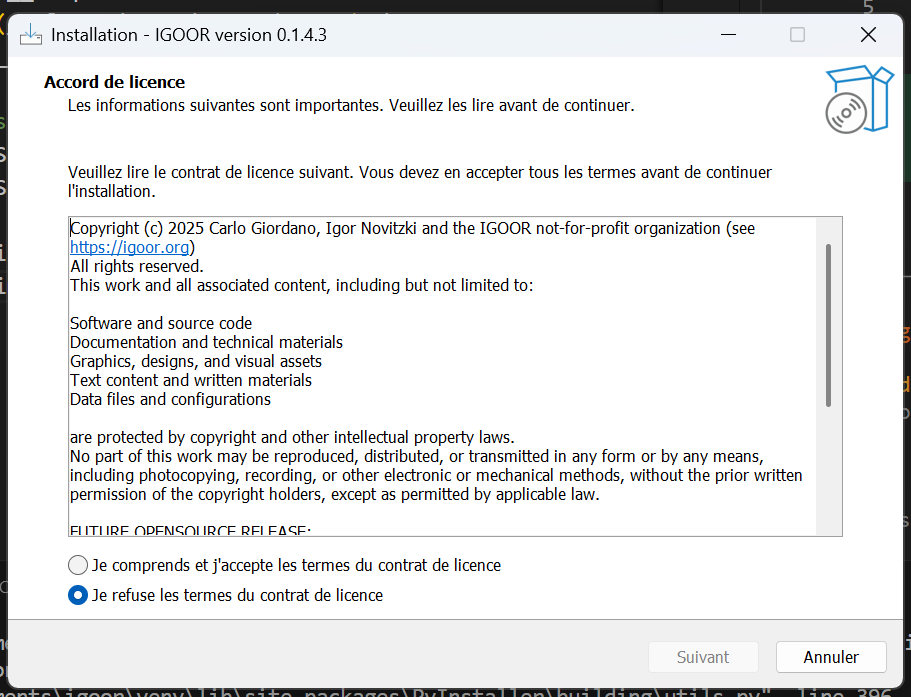
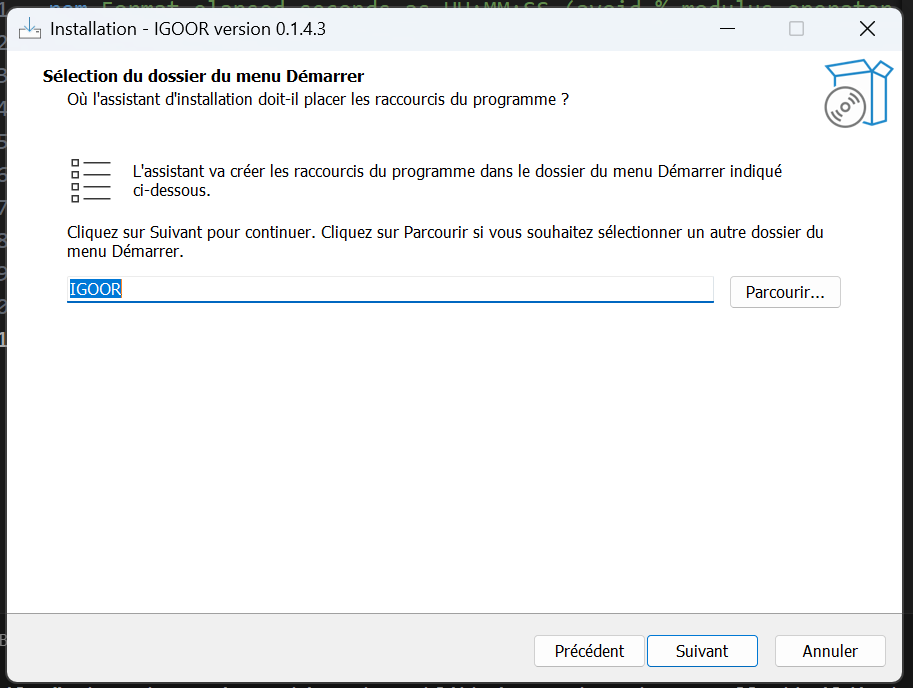
Then, choose the folder where to install IGOOR if you wish (or leave the default folder). You can then define where the software will appear in the Windows Start menu:
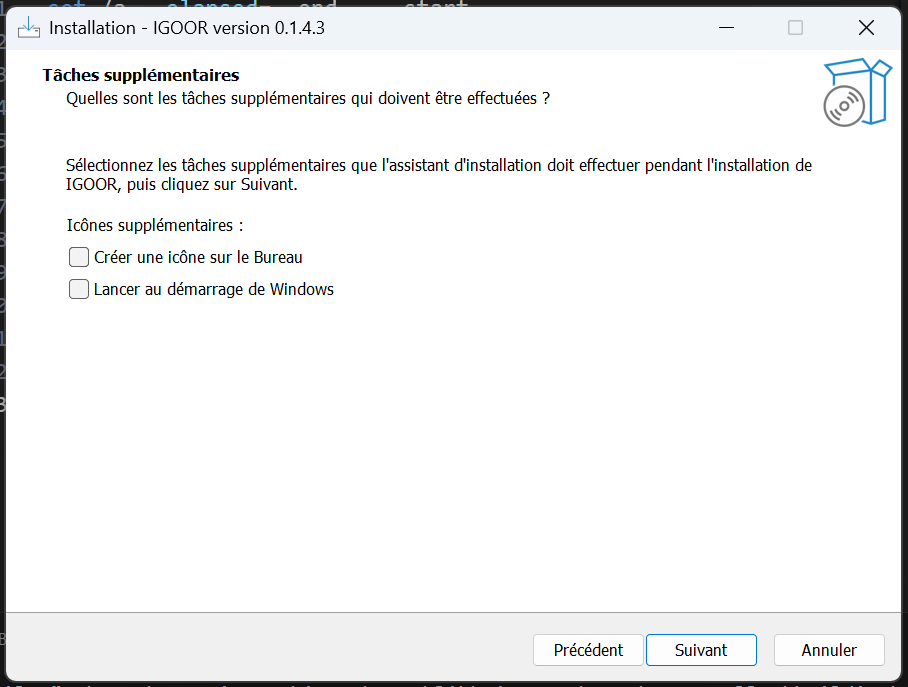
Next, check the boxes if you wish to:
a) create a desktop shortcut; b) automatically launch IGOOR at Windows startup.
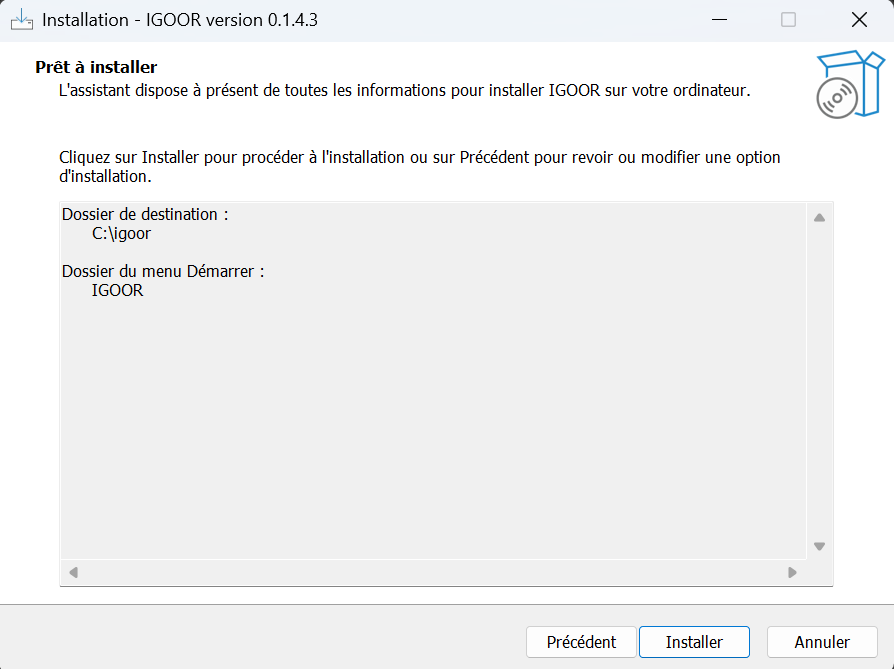
The summary invites you to finalize the installation by clicking "Install":
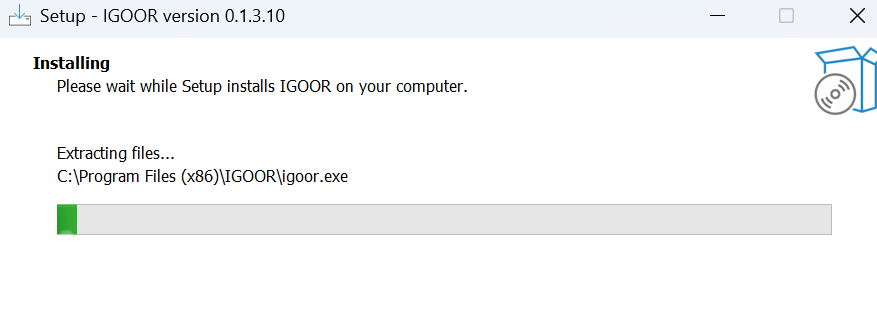
The software starts the installation:
 At the end of the installation, you can launch IGOOR directly from its icon: go to 5 - First run.
IMPORTANT: If you run into installation problems, follow Troubleshooting common problems