5 Quick Buttons

These buttons are ALWAYS PRESENT on the screen, at the bottom of the application page.
The leftmost button quickly minimizes the IGOOR window, to switch to another software.
The other buttons, once activated, directly speak a phrase or a sound, with no need for additional clicks.
The spoken phrases are NOT integrated into the ongoing conversation: the goal is also to meet very urgent needs without polluting the ongoing conversation.
The WAIT button communicates to the interlocutor that the user is currently writing a response to them and therefore still needs a little more time.
The REPEAT button asks the interlocutor to repeat their question, because the AI did not correctly transcribe their sentence.
When the user is in the settings, the buttons automatically reduce their size to leave more room for the settings interface.
Customizing quick buttons
From IGOOR v1 onwards, you can choose which buttons to display (or not) in the interface. If you never use, for example, the "Drink" button, you can safely remove it. Fewer buttons means buttons that are easier to find and click.
SOS button configuration
The red SOS button is used to alert family or caregivers that there is an emergency.
The button can be configured either to speak the phrase "Help me, it's urgent!" (this is its default behavior), or to emit an alert sound.
To configure it, go to:
Settings > Extensions > Predictions
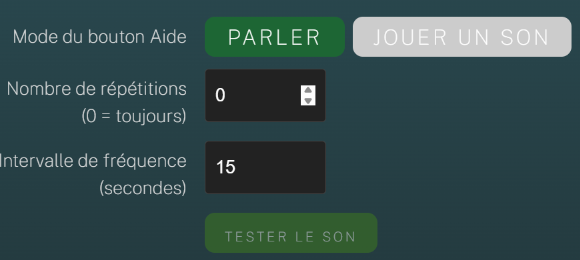 And click on the settings of the Shortcuts extension.
Here, you will be able to choose between speech or the alert sound.
And click on the settings of the Shortcuts extension.
Here, you will be able to choose between speech or the alert sound.
You can also choose the number of repetitions (0 = infinite, until manual stop), and the interval between each sound.
IMPORTANT: If the sound persists, you must either click again on any quick button, or start a new conversation, or end an ongoing conversation.