4 Continuous mode and wake word
By default, IGOOR starts transcription on a click on the microphone icon, and stops it on a second click. This mechanism was designed to clearly mark the voice to be transcribed, and to avoid transcription errors in noisy environments.
You can use an external button so that the interlocutor can more easily start and stop voice recognition, without needing to click on the user's PC and without any action required from the user.
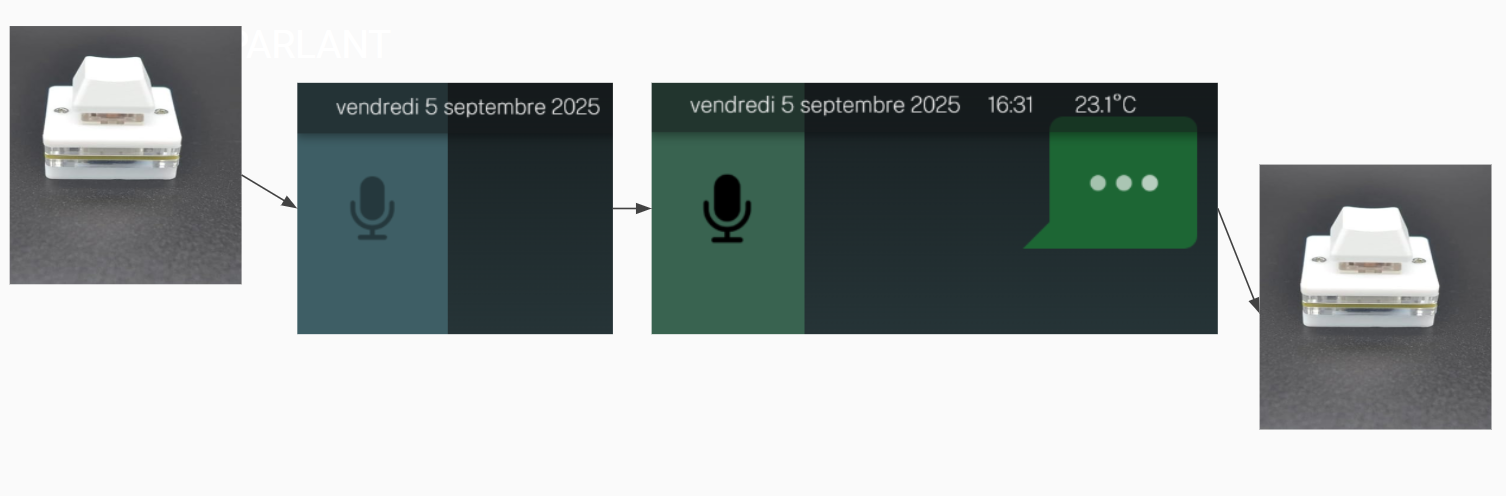
If you would like to purchase a 2 - External button for voice recognition:
NOTE: For now, the external button works exclusively when the IGOOR window is active.
Continuous listening mode
Instead of clicking on the microphone for each sentence, from IGOOR v1 onwards you can choose continuous listening. In this mode, you click the microphone only once to start the communication, and - each time you speak - IGOOR will transcribe your sentences. When you click the button again, the conversation is over and continuous listening stops.
You can enable continuous listening in:
Settings > Home > Configure voice recognition
Configuring continuous listening
Continuous listening is a feature that may require customization, which is always done in:
Settings > Home > Configure voice recognition
For example, if there is some ambient voice noise, you can raise the voice detection threshold. If, on the other hand, your interlocutor is speaking but transcription doesn't trigger, try lowering it.
IMPORTANT: regardless of your choice of voice recognition system (local or cloud), the sounds BEFORE the start of the conversation stay 100% on your computer.
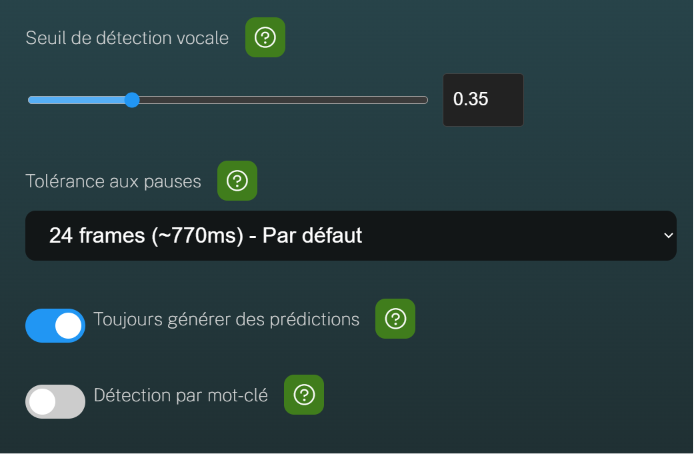
Also, if IGOOR cuts off a sentence too often because of the pauses your interlocutor makes while speaking, you can raise the pause tolerance.
Finally, if you want predictions to be generated for the user based on the semantics of the conversation, you can uncheck "Always generate predictions". IGOOR will do a quick semantic analysis to decide whether your interlocutor's sentence is finished or not, and therefore whether to generate predictions or wait for the interlocutor to finish.
Wake word
You can trigger continuous listening not only with a click, but also with a wake word. The wake word is inspired by voice assistants like Alexa, Siri etc.: if you say "Hey, Igoor", IGOOR will start the conversation without any click required.
IMPORTANT: regardless of your choice of voice recognition system (local or cloud), voice detection is done 100% on your computer. If you use a cloud provider, no data is sent to the cloud until the conversation has started.
Wake word customization
It is now possible, thanks to the openwakeword.com website, to easily customize the wake word. Instead of starting a conversation with "Hey, Igoor" you can choose other words, first names, etc. in your language, for example "Hey, Juliette" or simply "Juliette". This customization seems fundamental to us for the human aspect.
IMPORTANT: We are not affiliated with Openwakeword.
To customize the wake word, you can choose between:
1) a wake word library to download from the openwakeword site (free); 2) if the word doesn't exist yet, you can train a specific model (your "Alexa"-style word). You can do this on your own, on the openwakeword site, but the IGOOR association can accompany you through this procedure, which is not straightforward and is paid (a few euros).
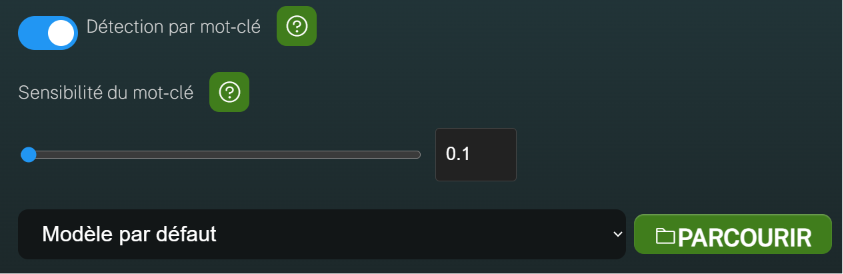
Wake word library
Wake word configuration
Beyond the microphone and the interlocutor's distance, IGOOR's ability to correctly detect the wake word depends on several aspects:
1) the word model; 2) the length: "Hey, Juliette" is generally simpler to detect than "Juliette", but a phrase that is too long is more difficult; 3) your language; 4) the quality of the wake word model training.