5 First run
Microphone permission
The first time you use IGOOR, a popup will open on the page to ask for microphone access. Microphone access enables 1 - Voice recognition.
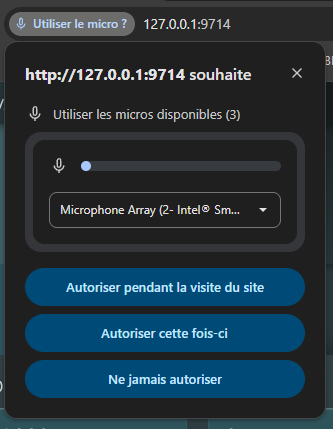
Click Allow while visiting the site. You can also select and test the microphone from the dropdown menu, to make sure it is the right device. This permission is permanent.
AI model downloads
The first time you launch IGOOR, or after activating a new extension, the software performs operations such as downloads, database creation, etc.
In particular, the first time you launch IGOOR the software needs to download the AI models required for your knowledge base. Depending on the speed of your internet connection, this first step may take more or less time.
A progress bar will appear right next to the settings button:
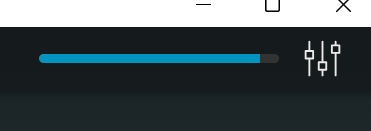
By clicking on the bar, a popup displays the names of the extensions that are not yet ready for use. You will find the extensions configurations on the settings home page or in
Settings > Extensions.
Also, if you enable extensions (e.g. ElevenLabs or Speechify) and you do not finish their configuration, the bar will never reach 100%.
This indicator does not prevent the use of IGOOR, but not all features will be available.