Troubleshooting common problems
Installing the application
Smart Screen
The IGOOR association is not yet certified as a software publisher. SmartScreen may therefore not let you start the installation process at all, and may show you this popup:
SOLUTION: Click on "More info" and then "Run anyway"
Antivirus
At the end of the installation process, launching the application may fail due to a false positive in virus detection by Windows or your antivirus. A popup opens and informs you that the application has been identified as a virus.
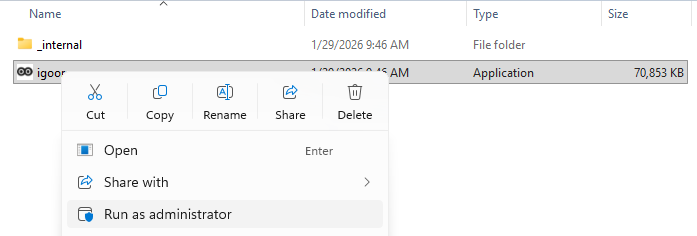
SOLUTION: Run the software installation as an administrator by right-clicking on the application icon and selecting "Run as administrator" in the popup window that opens.
Using the application
Display issues in the application
If your daily needs screen looks like this:
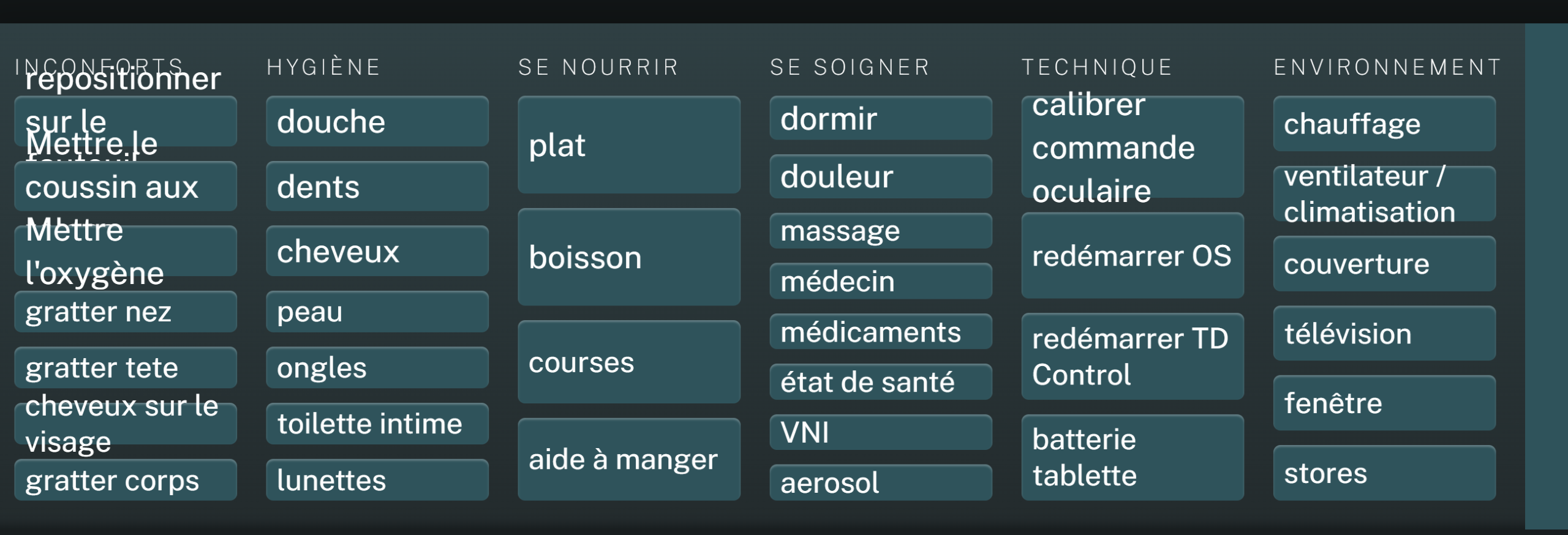
Most likely this comes from text resizing performed automatically by Windows.
Follow this procedure on Windows:
Go to:
Start > Settings > System > Display
Scroll down to the Scale & layout section.
If the percentage is higher than 100%-150%, setting it to 100% (and restarting IGOOR) should fix the display.
Predictions don't appear
Do you have a paid Groq API key? If not, there is a limitation on the frequency and length of requests (per minute and per day) that can affect the use of the application.
Voice recognition quality is poor
Current voice recognition models are not perfect. Follow the advice in 2 - Dialogue with the interlocutor. Also:
1) A good microphone (and a good distance between the interlocutor and the microphone) can hugely improve quality; 2) If you use the local model, make sure to use its large size; 3) If you use the Groq cloud model, try switching to the non-turbo Whisper-Large version in 2 - Cloud voice recognition