2 Quick configuration
IGOOR is designed to allow many customizations. If you want to go in depth right away, go to 1 - Home page.
If, on the other hand, you want to test IGOOR as quickly as possible, configure it through a free Groq key:
We recommend the Groq provider for the following advantages:
- Speed (Groq is a dedicated chip manufacturer)
- Respect for privacy (its servers are located in Europe)
- Groq does not use the data to train its models, because it supports open-source and open-weights models
- Groq also offers two good voice recognition models
- You can use their free offer without needing to enter your payment information, with no time limits
- If you decide to switch to the paid version, Groq offers an extremely competitive pricing model
IMPORTANT: We are neither partners nor affiliated with Groq. From version 1 onwards, IGOOR supports other cloud AI providers (4 - Preferences - AI) as well as your local AI.
Use IGOOR for free with Groq
Groq lets you test its features for free with a developer account.
Get a  Groq
Groq
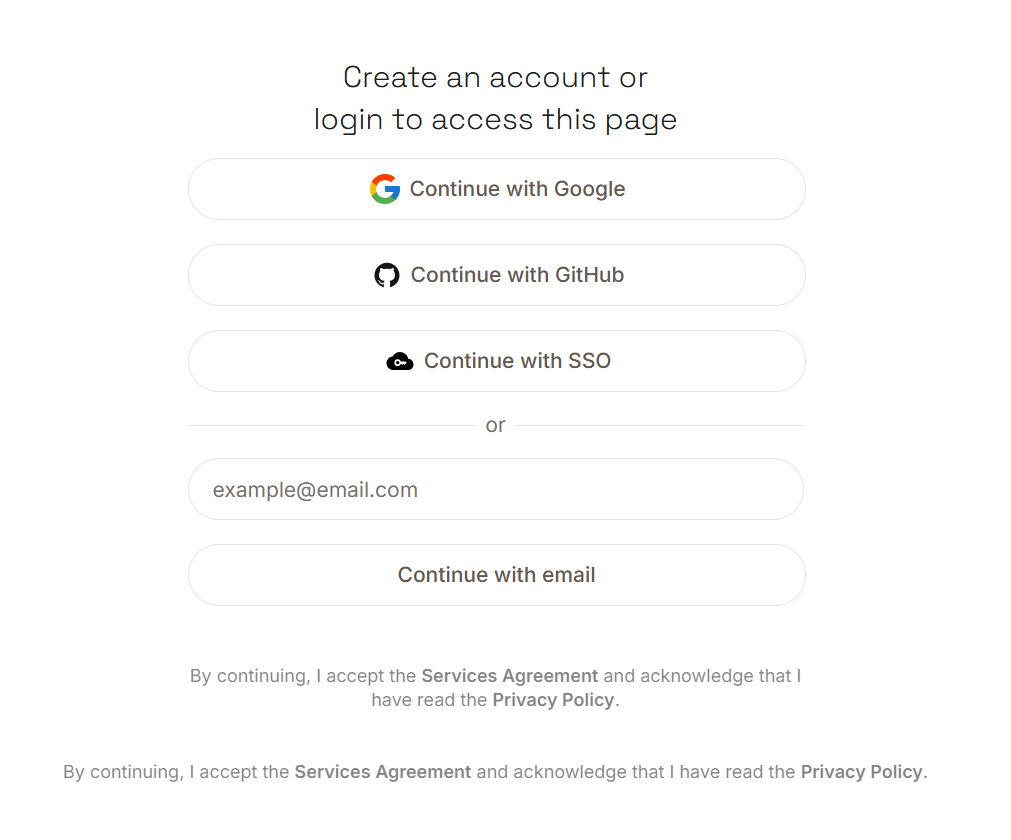 Sign up using your email address (if you have a Google account or one of the other providers shown, you can authenticate through them).
Once authenticated, click the Create API Key button:

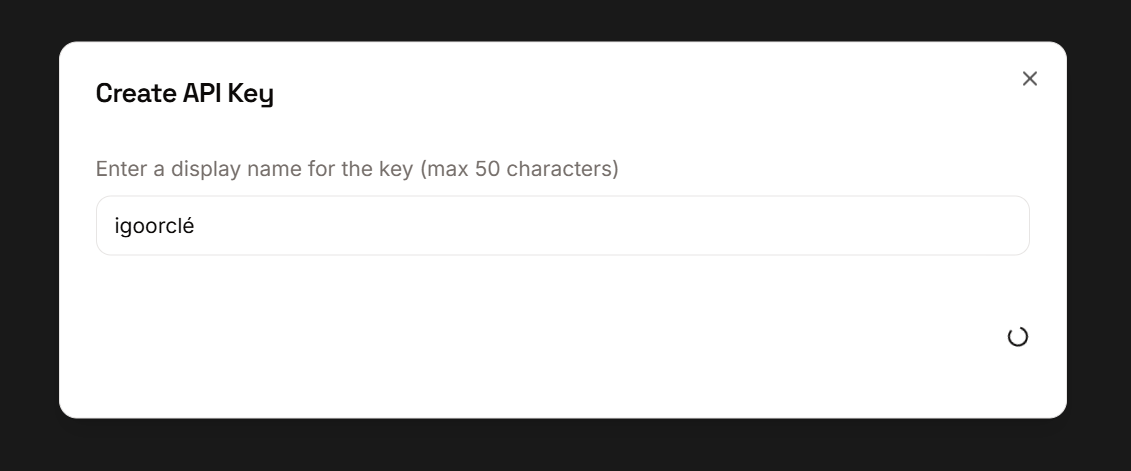
Give a name to your key in the window that opens, for example "igoorclé":
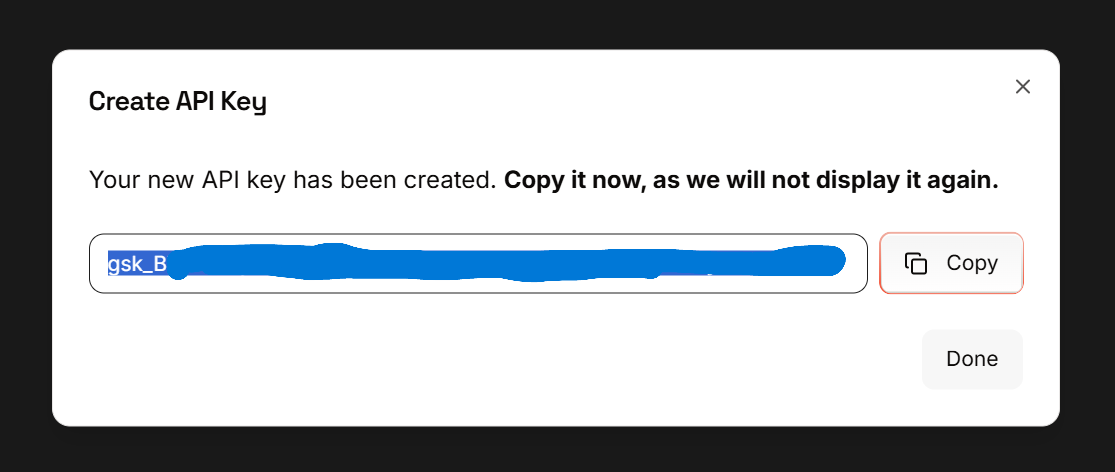
In the window that opens, copy your key by clicking the Copy button:
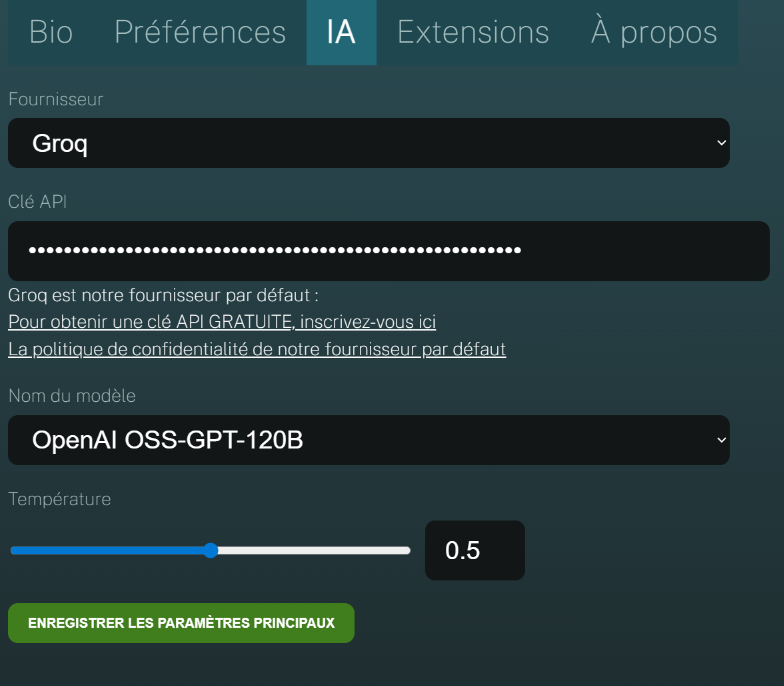
Go back to the IGOOR software, open the settings (button at the top right) and click the AI tab.
Paste the key into the API Key field and click the Save main settings button:
The settings window closes automatically.
IMPORTANT: If you use IGOOR regularly, you may quickly run into limitations (and so predictions may be paused for a while). Consider entering your credit card information on Groq to get a paid developer account if you run into these issues.
